 CamWatch
 on iPhone
Everything you can do with CamWatch on your iPhone, from first setup to zooming in on the driveway.
Setting up for the first time
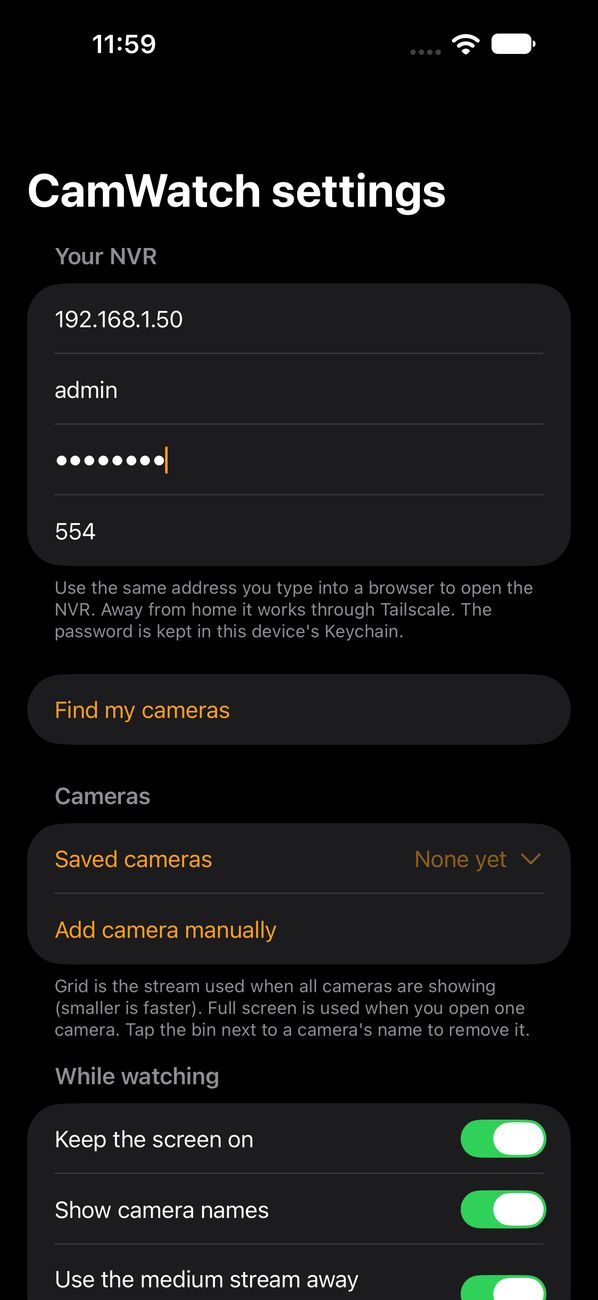
Your iPhone needs to be on the same Wi-Fi as your NVR.
- Open CamWatch and tap Set up cameras.
- Under Your NVR, type the NVR's address (for example
192.168.1.50), its username and its password. Leave the video port as 554 unless your NVR uses a different one. - Tap Find my cameras. CamWatch asks the NVR for its cameras and picks the right picture size for each view. It can take up to a minute.
- If your iPhone asks to find devices on your local network, tap Allow. CamWatch needs this to reach your NVR.
- Tap Save and watch. Your cameras appear in a grid.
If Find my cameras comes up empty, see Support, or add a camera yourself with Add camera manually and its RTSP link from your NVR's manual.
Watching all your cameras
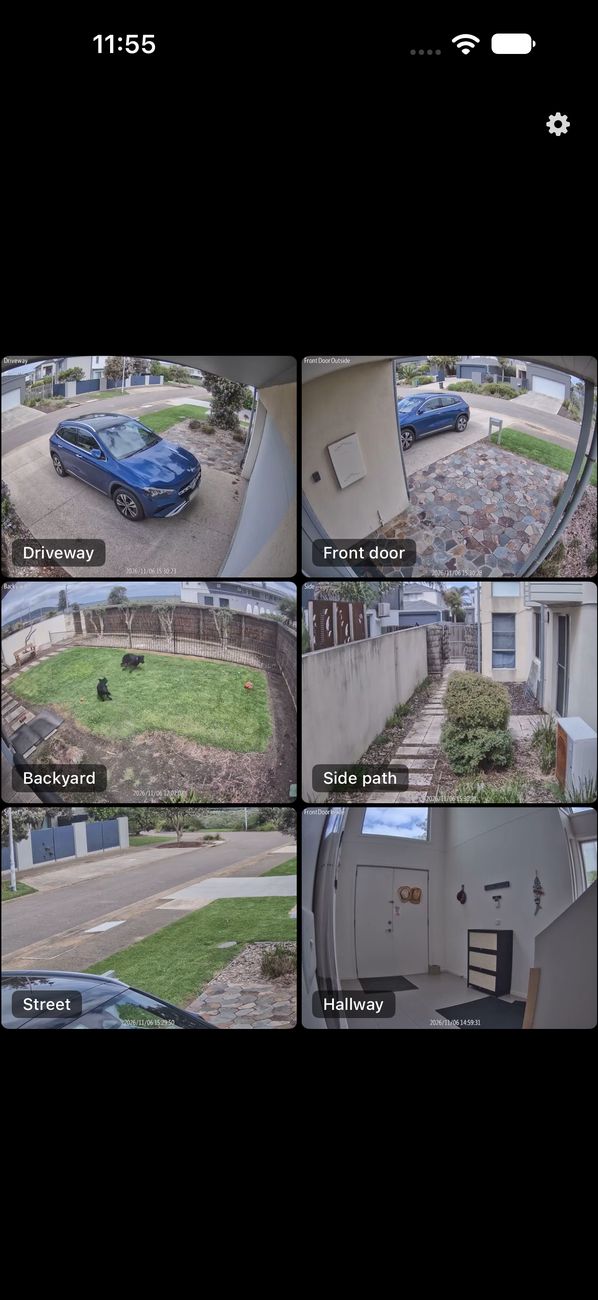
- The grid shows all your cameras at once and fits them to your screen. Turn your iPhone sideways for bigger pictures.
- Tap a camera to open it full screen.
- The gear button in the top right corner opens Settings.
One camera, full screen
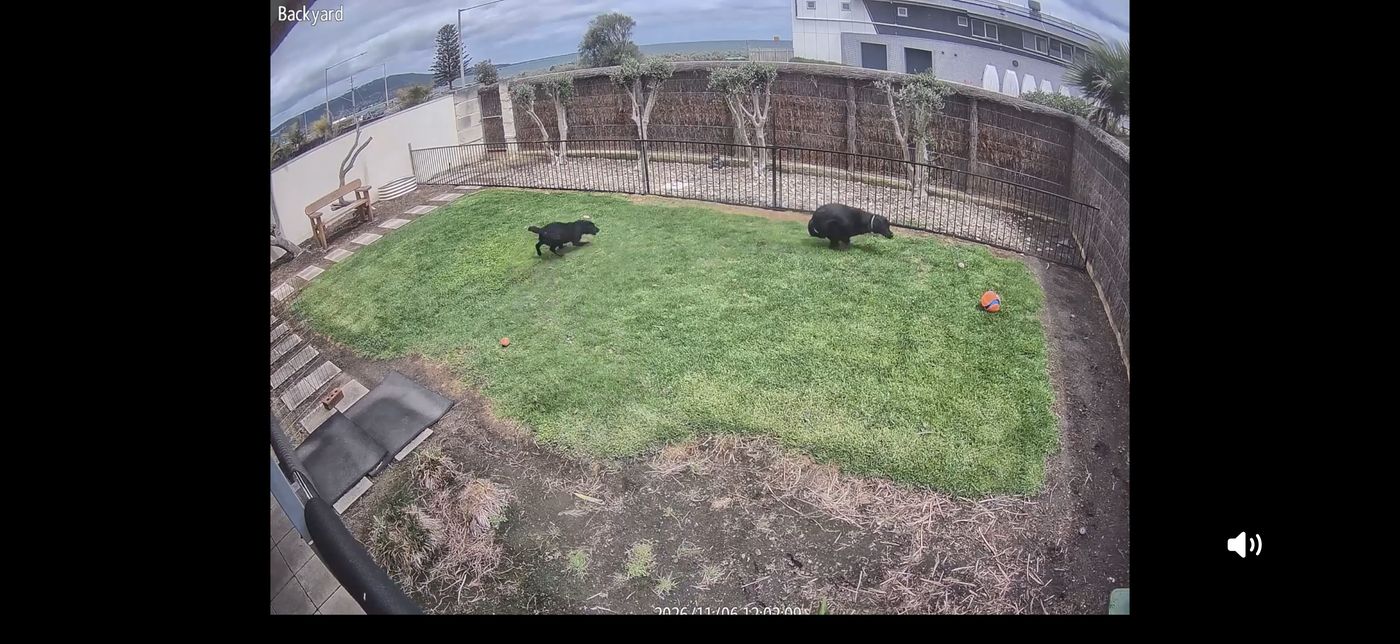
- Switch camera: swipe left or right.
- Zoom: pinch to zoom in, then drag to look around. Double-tap to zoom in quickly, and double-tap again to go back.
- Sound: tap the speaker button in the bottom right corner. Sound starts off each time you open a camera.
- Back to the grid: tap the picture.
The camera's name and number show along the bottom for a few seconds, then fade so they don't cover the picture.
Putting cameras in your order
- In the grid, touch and hold a camera.
- Drag it to where you want it. The other cameras shuffle along in order.
- Let go.
Renaming your cameras
CamWatch starts with the names your NVR uses. To give a camera a friendlier name, like "Front door":
- Open Settings (the gear in the top right corner of the grid).
- Under Cameras, tap Saved cameras to show the list.
- Tap the name of the camera you want to change, and type the new name.
- Tap Save and watch.
To remove a camera completely, tap the bin next to its name, then Save and watch.
What's in Settings
- Your NVR
- The NVR's address, username, password and video port.
- Find my cameras
- Asks your NVR for its cameras again, for example after you add a camera.
- Saved cameras
- Your cameras, their names, and which picture size each one uses. Grid is the size used when all cameras are showing (smaller is faster); Full screen is used when you open one camera. Remote is the lighter picture used when watching remotely, on mobile data or Tailscale.
- Add camera manually
- For cameras Find my cameras can't see. You'll need the camera's RTSP link from your NVR's manual.
- Keep the screen on
- Stops the iPhone going to sleep while you're watching.
- Show camera names
- Shows or hides the name labels on the grid.
- Use a lighter stream when watching remotely
- When you're watching remotely, full screen uses a lighter picture so it starts quickly. On the same Wi-Fi as your NVR you always get full quality.
Watching remotely
CamWatch is built for your local network, but you can watch remotely using Tailscale, a separate free app. See the FAQ for a quick guide.